Free Sticky Notes

Friday, January 27, 2012
Download free software
Clear history
Reminder software - download reminder software with task and event scheduler. Professional reminder program that acts as daily reminder, date reminder, birthday reminder, desktop reminder, appointment reminder, event reminder
Send reminders over LAN/Internet
Reminder software for home and office
Form filler software
Fill online forms, fill and submit forms automatically.
Download fill forms software for Internet Explorer. Fill web forms - fill form software for Windows. Fill forms automatically
Encryption software
Sticky Notes
Delete history
Portable sticky notes
Desktop Stickies
Free form filler
Delete Files Permanently
Hide browser windows
Random password generator
Internet history eraser
Eye makeup tips
Eye makeup for small eyes
Dramatic eye makeup and smoky eye makeup
Eyeshadow tips for sexy eye makeup
Deep-set eyes makeup
How to delete cookies
Erase History
Make your own ringtones

Free sticky notes FAQ

• Why use free sticky notes?

Using free desktop sticky notes software you can:
• write down your ideas and thoughts in a quick and easy way using pc sticky notes;
• stick notes on your computer desktop;
• drag and drop sticky notes anywhere you want;
• choose individual visual appearance for each sticky note;
• change note's color and font;
• change note's size manually or using the zoom feature;
• set up default settings for newly created sticky notes;
• change note's transparency;
• export and import notes database;
• print sticky notes and take them with you;
• automatically save changes in sticky notes;
• efficiently organized sticky notes on the desktop - create notes with different priorities;
• show and hide sticky notes;
• roll-up notes to show only note's title;
• automatically insert date and time of creation in note's title;
• protect pc sticky notes from casual delete using lock/unlock commands;
• use the "autolock" function;
• use hotkeys to create sticky notes, show and hide notes etc;
• use note scrolling

Free Sticky Notes

Instead of jotting down your notes and ideas on paper, you can put all your data in Sticky Notes. With free sticky notes you will be able to organize and easily find all your contacts, phone messages, web links, shopping list, projects and more. Sticky Notes opens a new way to deal with information. And it's free.


Sticky notes software

Free sticky notes helps you keep and manage information and communicate with your friends and colleagues.
With free sticky notes software you can send sticky notes over a LAN/WLAN and the Internet
Free Sticky Notes (sticky notes freeware) is a new way to record, keep and manage important information, dates and events using desktop sticky notes.
Free sticky notes is an ideal sticky notes program for home and office. You'll be amazed at how easy and quickly you can create desktop sticky notes. To create a new sticky note just double click the program tray icon.
Free Sticky Notes will not clutter up your desk and monitor and disturb your work as you can create sticky notes with different priorities, hide sticky notes or place them on the desktop, show only note's title and use transparency effect.

You can choose individual visual appearance for each sticky note: title customization (background color, font), body customization (background color, font), size customization (manually, zoom feature). Various notes settings including default settings for newly created sticky notes can be modified to your preference enabling you to create a note just the way you like it. The notes' titles display the date and time of creation.

Sticky notes automatically save changes as soon as they occurred, so you won't lose any important information. You can also protect sticky notes from casual delete using lock/unlock commands and "autolock" function.

The position of every sticky note on the screen is changeable. You can drag-and-drop sticky notes anywhere you want on your desktop. Furthermore, you can print sticky notes and take them with you.

Free Sticky Notes

• Stick notes on your computer desktop;

• send sticky notes over LAN/Internet;

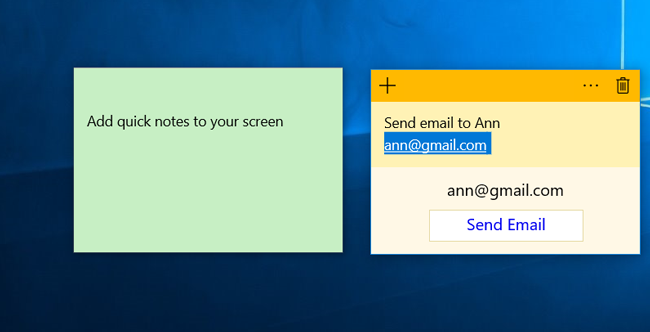
• send notes via email;

• drag and drop sticky notes on your desktop;

• choose individual appearance for each sticky note;

• change sticky notes color and font;

• change sticky notes size manually or using zoom feature;

• set up default settings for newly created sticky notes;

• use transparency feature;

• print sticky notes and take them with you;

• automatically save changes in sticky notes;

• create sticky notes with different priorities;

• show/hide sticky notes;

• roll-up sticky notes to show only note's title;

• export/import sticky notes database;

• automatically insert date and time of creation in note's title;

• protect sticky notes from casual delete using lock/unlock commands;

• use "autolock" function;

• use hotkeys to create sticky notes, show/hide notes etc;

• use scrolling;

• access sticky notes and program options from the system tray.

Secure Reminder - powerful and easy-to-use secure sticky notes and reminder software with task scheduler and password generator.

Notes PP - multifunctional desktop sticky notes software with strong information encryption. Perfect for making quick reminders. Sticky notes organizer that lets you stick notes on your Windows desktop. Ideal for home and office.

Why use sticky notes software...


• Paper sticky notes can be used only once. So you have to purchase them again and again. Once installing sticky notes software you get a great tool for organize important information, make to-do list or just write down quick information.

• Unlike paper sticky notes that can be easily lost, sticky notes software keeps your information in a safe way. You'll never misplace or lose computer sticky notes.

• Sometimes it is difficult to find paper sticky notes with necessary information. Using sticky notes software "search" feature, you can quickly find sticky notes with necessary information. Sticky notes software allows you to open web pages and files and run programs that are attached to sticky notes just by double-clicking on them. You can also stick notes to any files, programs and windows you want. So, whenever you open the program/file/window, the desktop sticky note will remind you everything you have to remember.

• Computer sticky notes will not clutter your desktop and disturb your work as you can create sticky notes with different priorities, hide or place them on the desktop, show only titles and use transparency effect.

• Sticky notes software maintains three security levels (high, normal, low). Sticky notes information is encrypted using 256-bit key AES encryption. If you keep your information using paper sticky notes, it can be easily seen and accessed by everyone.

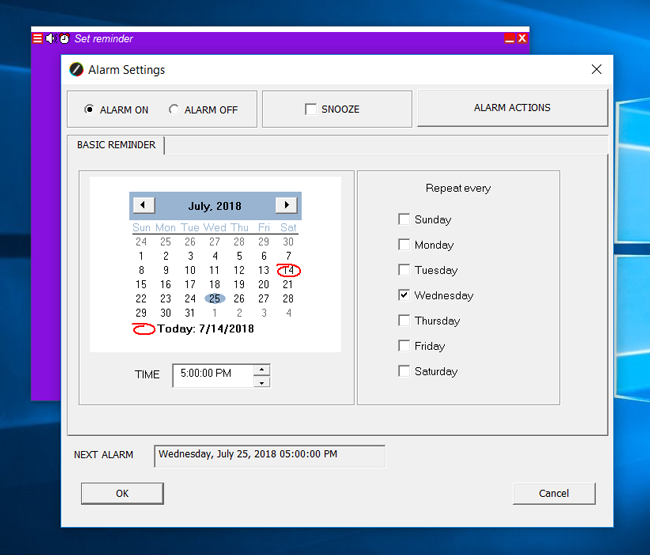
• Using sticky notes software you can make desktop reminders, which will inform you about the approaching dates and events and other important matters without interrupting your work.


• Stick notes on your computer

Free Sticky Notes software (sticky notes freeware) is a great tool to organize information or just write down ideas and thoughts. Just create a sticky note and "stick" it to your computer desktop. That way important information is always in front of your eyes. Unlike paper sticky notes that can be easily lost, desktop sticky notes keep your information in a safe way.


• Sticky notes customization

Using Free Sticky Notes software you can change sticky notes appearance the way you want. All computer sticky notes are resizable. You can change size using zoom commands or manually. Transparency feature lets you vary the degree of desktop sticky note transparency from 0% to 100%. Each sticky note may have different title and body (background color, font, font size, font color)


Send sticky notes

Sending Notes over LAN/Internet

You can use free sticky notes software to send and receive sticky notes to/from your friends or colleagues.
To send sticky notes over a LAN or the Internet:
• Select sticky note you want to send.
• Select "Send note" from the context menu.
• Select "Send note over LAN/Internet" option
• Enter the recipient IP address or computer's name to direct a note to a specific computer.
• Click "Send" button. Sending Notes via Email

Using free sticky notes software you can send notes via email to any email address. The e-mail will be created using your default e-mail client. Recipient will receive your note in the form of letter with note's body inserted into the e-mail body and note's title as a subject. You can edit the e-mail before sending.
• Go to the note you want to send. • Choose "Send note" from the context menu.
• Select "Send Note via E-mail" option

• Enter recipient e-mail address. You can also specify multiple recipients by typing more than one e-mail address separating with a comma (','). • Click "Send" button • Created e-mail appears. You can edit and send it.


• Efficiently organize sticky notes on the desktop

The position of every sticky note on the screen is changeable. You can drag-and-drop your notes anywhere you want in your desktop. Sticky notes will not clutter your desktop and disturb your work as you can create notes with different priorities, hide notes or place them on the desktop, show only note's title and use transparency effect - that allows organize your desktop the way you want it. Sticky notes with low priority are hidden under other windows. Sticky notes with normal priority are organized to keep standard Windows order. Sticky notes with high priority are always on the top.


• Use "Auto lock"

If "Auto lock" option is on, sticky notes will be automatically locked after the set period of time.

• Protect sticky notes

You can protect sticky notes from casual editing/deleting using lock/unlock commands.

• Automatically save sticky notes changes

Free Sticky Notes software automatically saves all sticky notes changes as soon as they occurred. So there is no need to save your notes manually. That way important information will never been lost.

• Export/import sticky notes database

Using export/import feature you can easily export/import sticky notes database from one version to another or between different MoRUN.net products.


• Easily access desktop sticky notes and program options from the system tray

Free sticky notes software resides in the system tray that provides quick and easy access to sticky notes and program options. The color of the Free Sticky Notes tray icon is different depending on if there are some hidden notes or not. Tray menu is accessible by right-clicking on the Free Sticky Notes tray icon.

• Hotkeys

Some commonly used commands (eg. create a new sticky note, show/hide sticky notes, etc.) have hotkeys. You can use these hotkeys from any application. Using "Default settings" you can define your own hotkeys combinations.

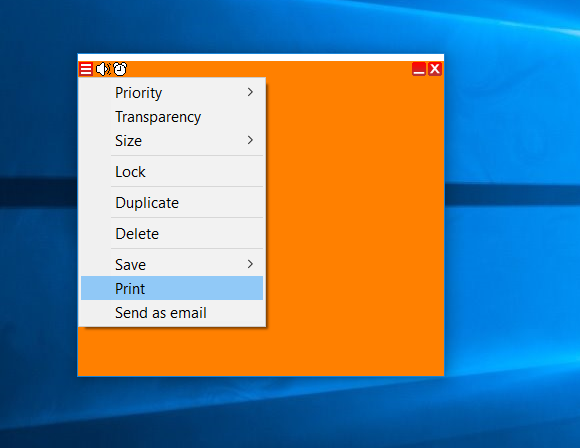
• Print sticky notes

You can easily print computer sticky notes and take them with you.

How to create and post sticky notes (quick notes) on the desktop

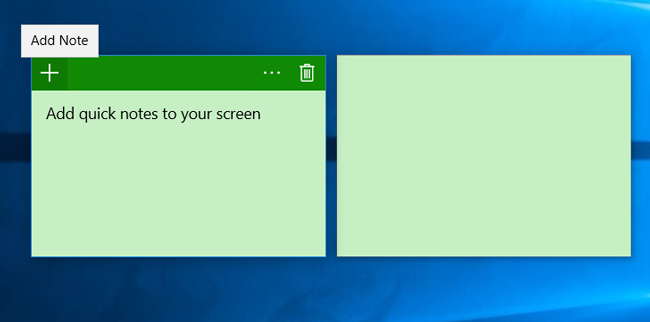
To create and post notes on the desktop, press Ctrl + Alt + N.

How to change desktop sticky notes appearance

To change desktop sticky notes appearance:
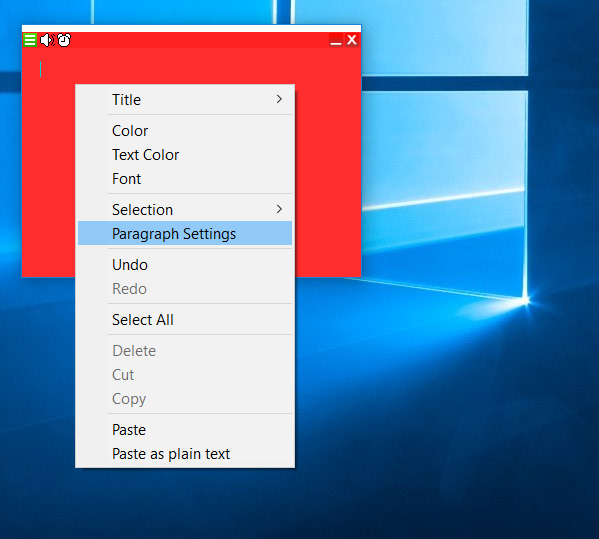
• Right-click the desktop sticky note and select necessary item from the note's context menu. • Make necessary changes and click OK.

How can I show/hide desktop sticky notes?

To hide a desktop sticky note, click on the hide icon or select Notes|Show/Hide in the Free Sticky Notes tray menu and select the desktop sticky note you want to be hidden.
If you want to hide all desktop sticky notes that are currently displayed, open the Free Sticky Notes tray menu and select Notes|Show/Hide|Hide all or press Ctrl+Alt+H.
To post notes (post hidden notes) back on the desktop: right-click on Free Sticky Notes tray icon, select Notes|Show/Hide in the tray menu and select the desktop note you want to show (post on desktop).
The color of Free Sticky Notes tray icon is different depending on if there are hidden notes (red) or not (yellow).
o post all notes on desktop (show all notes), select Notes|Show/Hide|Show all in the tray menu or press Ctrl+Alt+S.

How to lock/unlock computer sticky notes

To lock a sticky note, select Lock note in the computer note context menu or click on the lock icon. Lock icon is red if the computer note is locked; white lock icon indicates the computer note is unlocked.
To unlock a computer note, click on the lock icon or select Unlock in the computer sticky note context menu. If the note is locked, you can do nothing except move or hide it.
If you want computer sticky notes to be locked automatically:
• Select Properties|Default settings in Free Sticky Notes tray menu. • Select Auto lock function and set the time.

How can I edit desktop sticky notes?

Free Sticky Notes supports RTF format that allows you to edit desktop sticky notes (quick notes) any way you want.
You can edit only unlocked sticky notes.
- Edit note's title:
• Right-click on the quick note and select Title|Edit in the note context menu.
• Make necessary changes.
• To finish title editing, click on the finish title edit icon or press Enter or select Title|Finish title edit in the quick note's context menu. Editing is also stopped if you change note's parameters or click on the Hide or Lock icon.
- Edit note's title:
• Right-click on the quick note and select Body|Edit in the note's context menu or click on the note's body. Quick note's body will be ready for editing. If you want to finish body editing, click in any point of the screen.
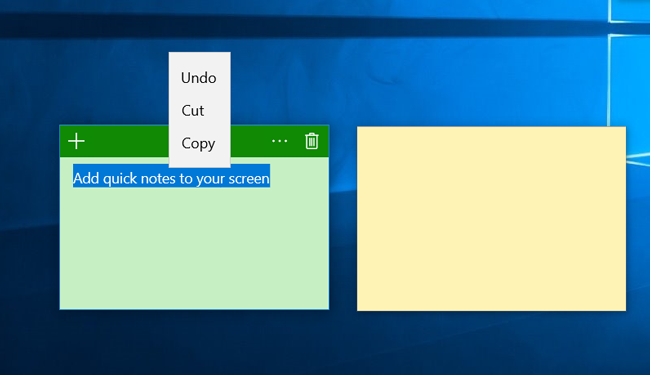
Also you can use Undo/redo, copy/paste/cut/delete commands while editing.

What is the difference among low, normal and high note priorities?

To make your work with computer sticky notes more convenient, free sticky notes software is organized to provide three note priority levels(high, normal, low). If quick notes have low priority, they are hidden under other windows and their hide icon (X) is yellow. Quick notes with normal priority have standard Windows order and hide icon for such notes is green. Quick Notes with high priority are always on the top, they have red hide icon.

How to change sticky notes size

You can change sticky notes size using zoom commands or manual.
Sticky notes can be minimized to save you desk space. To minimize sticky notes (quick notes), right-click on note and select Settings|Zoom|Minimize in the context menu. Minimum note's size is set in default settings (min width not less than 100 pixels, min height not less than 50 pixels) and may be changed. To maximize sticky notes (quick notes), right-click on note and select Settings|Zoom|Maximize in the sticky note (quick note) context menu.
Using Settings|Zoom|to fit Title and Settings|Zoom|to fit Body commands you can automatically resize quick notes' windows to fit notes' information.

Notes PP - sticky notes software to organizer your ideas. Using this smart sticky notes program for Windows you can create desktop sticky notes and reminders, send sticky notes over a LAN or the Internet, stick notes to files, programs and windows, efficiently organize sticky notes and more.
Easy-to-use note taking software to create custom sticky notes (stickies)

   Copyright © 2012 Free Sticky Notes.com All rights reserved. | Privacy Policy | Site Map |