|
Saturday, May 17, 2008
|
|
|
|
|
|
|
|
|
|
|
|
|
|
|
|
Top Question
How can I know if there are hidden sticky notes or not?
The color of the FriiStickyNotes tray icon depends on if there are hidden notes or not. Red tray icon indicates there are some hidden notes; the tray icon becomes blue when all notes are shown. If you want to know how many notes are hidden, see ToolTip (also contain information about number of shown notes and total number of notes) or click on the Free Sticky Notes tray icon, select Notes|Show/Hide and you will be presented with a list of notes. All hidden notes are not marked with a (v) check mark.
|
|
|
|
FREE Sticky Notes - easy to use sticky notes software
|
NEW! Now you can use Free Sticky Notes to send sticky notes over LAN/Internet and via email
Communicate with your friends and colleagues has never been easier.
Learn how to send sticky notes
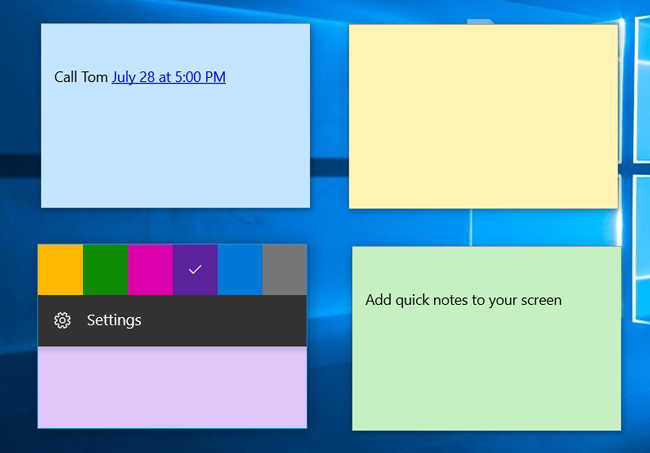
Free Sticky Notes (sticky notes freeware) is a new way to record, keep and manage important information, dates and events using desktop sticky notes.
Free Sticky Notes is an ideal sticky notes program for home and office. You'll be amazed at how easy and quickly you can create desktop sticky notes. To create a new sticky note just double click the program tray icon.
Free Sticky Notes will not clutter up your desk and monitor and disturb your work as you can create sticky notes with different priorities, hide sticky notes or place them on the desktop, show only note's title and use transparency effect.
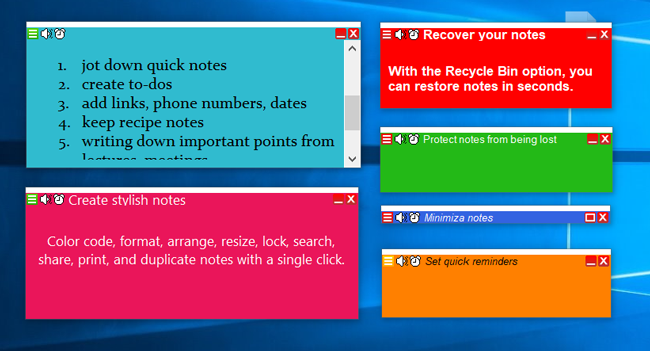
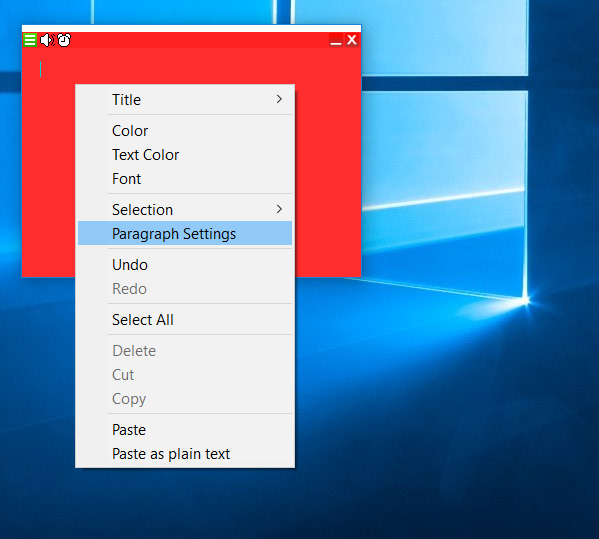
You can choose individual visual appearance for each sticky note: title customization (background color, font), body customization (background color, font), size customization (manually, zoom feature). Various notes settings including default settings for newly created sticky notes can be modified to your preference enabling you to create a note just the way you like it. The notes' titles display the date and time of creation.
Sticky notes automatically save changes as soon as they occurred, so you won't lose any important information. You can also protect sticky notes from casual delete using lock/unlock commands and "autolock" function.
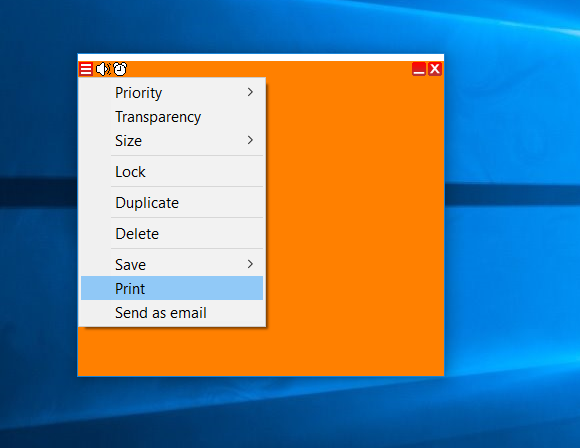
The position of every sticky note on the screen is changeable. You can drag-and-drop sticky notes anywhere you want on your desktop. Furthermore, you can print sticky notes and take them with you.
|
|
Free Sticky Notes : Main features |
Stick notes on your computer desktop;
NEW! send sticky notes over LAN/Internet;
NEW! send notes via email;
drag and drop sticky notes on your desktop;
choose individual appearance for each sticky note;
change sticky notes color and font;
change sticky notes size manually or using zoom feature;
set up default settings for newly created sticky notes;
use transparency feature;
print sticky notes and take them with you;
automatically save changes in sticky notes;
|
create sticky notes with different priorities;
show/hide sticky notes;
roll-up sticky notes to show only note's title;
export/import sticky notes database;
automatically insert date and time of creation in note's title;
protect sticky notes from casual delete using lock/unlock commands;
use "autolock" function;
use hotkeys to create sticky notes, show/hide notes etc;
use scrolling;
access sticky notes and program options from the system tray.
|
Need more features? Compare MoRUN.net sticky notes programs
Secure Reminder - powerful and easy-to-use secure sticky notes and reminder software with task scheduler and password generator.
NotesPP - multifunctional desktop sticky notes software with strong information encryption. Perfect for making quick reminders.
MoRUN.net Sticker - sticky notes organizer that lets you stick notes on your Windows desktop. Ideal for home and office.
|
Why use sticky notes software...
|
Paper sticky notes can be used only once. So you have to purchase them again and again. Once installing sticky notes software you get a great tool for organize important information, make to-do list or just write down quick information.
Unlike paper sticky notes that can be easily lost, sticky notes software keeps your information in a safe way. You'll never misplace or lose computer sticky notes.
Sometimes it is difficult to find paper sticky notes with necessary information. Using sticky notes software "search" feature, you can quickly find sticky notes with necessary information. Sticky notes software allows you to open web pages and files and run programs that are attached to sticky notes just by double-clicking on them. You can also stick notes to any files, programs and windows you want. So, whenever you open the program/file/window, the desktop sticky note will remind you everything you have to remember.
Computer sticky notes will not clutter your desktop and disturb your work as you can create sticky notes with different priorities, hide or place them on the desktop, show only titles and use transparency effect.
MoRUN.net sticky notes software maintains three security levels (high, normal, low). Sticky notes information is encrypted using 256-bit key AES encryption. If you keep your information using paper sticky notes, it can be easily seen and accessed by everyone.
Using sticky notes software you can make desktop reminders, which will inform you about the approaching dates and events and other important matters without interrupting your work.
|
Stick notes on your computer
Free Sticky Notes software (sticky notes freeware) is a great tool to organize information or just write down ideas and thoughts. Just create a sticky note and "stick" it to your computer desktop. That way important information is always in front of your eyes. Unlike paper sticky notes that can be easily lost, computer sticky notes keep your information in a safe way.
Sticky notes customization
Using Free Sticky Notes software you can change sticky notes appearance the way you want. All computer sticky notes are resizable. You can change size using zoom commands or manually. Transparency feature lets you vary the degree of desktop sticky note transparency from 0% to 100%. Each sticky note may have different title and body (background color, font, font size, font color)
|
|
Send sticky notes
Sending Notes over LAN/Internet
You can use Free Sticky Notes to send/receive sticky notes to/from your friends or colleagues.
To send sticky notes over LAN or Internet:
Select sticky note you want to send.
Select "Send note" from the context menu.
Select "Send note over LAN/Internet" option

Enter the recipient IP address or computer's name to direct a note to a specific computer.
Click "Send" button.
Note:
If a friend you want to send a note to doesn't have Free Sticky Notes or another MoRUN.net program or the program on the recipient computer is not running, you can put the check mark next to "Use Net Send if can't send notes" option in 'Default Sttings' to send a note as a message using Net Send. The Net Send utility is used to send messages to other users/computers on the network.
If you're having trouble sending or receiving notes, please read Troubleshooting section.
Sending Notes via Email
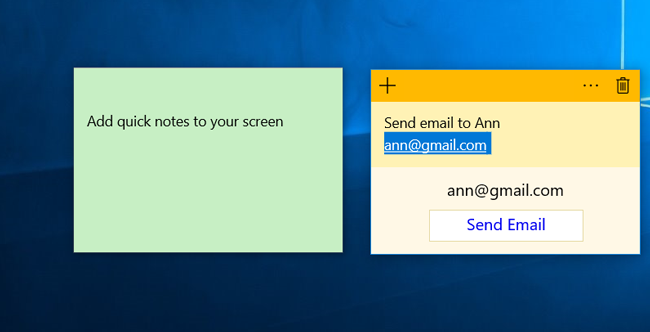
Using Free Sticky Notes you can send notes via email to any email address. The e-mail will be created using your default e-mail client. Recipient will receive your note in the form of letter with note's body inserted into the e-mail body and note's title as a subject. You can edit the e-mail before sending.
Go to the note you want to send.
Choose "Send note" from the context menu.
Select "Send Note via E-mail" option

Enter recipient e-mail address. You can also specify multiple recipients by typing more than one e-mail address separating with a comma (',').
Click "Send" button
Created e-mail appears. You can edit and send it.
|
|
Efficiently organize sticky notes on the desktop
The position of every sticky note on the screen is changeable. You can drag-and-drop your notes anywhere you want in your desktop. Sticky notes will not clutter your desktop and disturb your work as you can create notes with different priorities, hide notes or place them on the desktop, show only note's title and use transparency effect - that allows organize your desktop the way you want it. Sticky notes with low priority are hidden under other windows. Sticky notes with normal priority are organized to keep standard Windows order. Sticky notes with high priority are always on the top.
Use "Auto lock"
If "Auto lock" option is on, sticky notes will be automatically locked after the set period of time.
|
|
Protect sticky notes
You can protect sticky notes from casual editing/deleting using lock/unlock commands.
|
|
Automatically save sticky notes changes
Free Sticky Notes software automatically saves all sticky notes changes as soon as they occurred. So there is no need to save your notes manually. That way important information will never been lost.
|
|
Export/import sticky notes database
Using export/import feature you can easily export/import sticky notes database from one version to another or between different MoRUN.net products.
Easily access desktop sticky notes and program options from the system tray
Free Sticky Notes resides in the system tray that provides quick and easy access to sticky notes and program options. The color of the Free Sticky Notes tray icon is different depending on if there are some hidden notes or not . Tray menu is accessible by right-clicking on the Free Sticky Notes tray icon.
|
|
Hotkeys
Some commonly used commands (eg. create a new sticky note, show/hide sticky notes, etc.) have hotkeys. You can use these hotkeys from any application. Using "Default settings" you can define your own hotkeys combinations.
|
|
Print sticky notes
You can easily print computer sticky notes and take them with you.
|
|
|
Compare sticky notes software and sticky notes freeware
Features
|
Secure Reminder |
| NotesPP |
| MoRUN.net Sticker |
| FreeStickyNotes |
|
|
Create sticky notes |
|
+ |
|
+ |
|
+ |
|
+ |
|
|
|
Unlimited number of sticky notes
|
|
+ |
|
+ |
|
+ |
|
max 10 notes |
|
|
|
Sticky notes customization (title, body, size) |
|
+ |
|
+ |
|
+ |
|
+/- |
|
|
|
Make reminders with recurring alarm:
popup/flash note notification;
playing *.wav files;
running programs;
opening web pages and documents at a specified time;
computer shutting down |
|
+ |
|
+ |
|
- |
|
- |
|
|
|
Task and event scheduler |
|
+ |
|
- |
|
- |
|
- |
|
|
|
Send sticky notes and reminders over LAN or Internet |
|
+ |
|
+ |
|
+ |
|
- |
|
|
|
Send sticky notes via email |
|
+ |
|
+ |
|
+ |
|
- |
|
|
|
Organize sticky notes in groups |
|
+ |
|
+ |
|
+ |
|
- |
|
|
|
Associate ("stick") sticky notes and reminders with programs, files and windows |
|
+ |
|
+ |
|
- |
|
- |
|
|
|
Attach files/urls to sticky notes |
|
+ |
|
+ |
|
+ |
|
- |
|
|
|
Address book |
|
+ |
|
+ |
|
- |
|
- |
|
|
|
Built-in password generator |
|
+ |
|
- |
|
- |
|
- |
|
|
|
Three note's priority levels:
high level - "Always on the top";
normal level - "Standard Windows order";
low level - "On the bottom" |
|
+ |
|
+ |
|
+ |
|
+ |
|
|
|
256 bit-key information encryption |
|
+ |
|
+ |
|
+ |
|
- |
|
|
|
Safe work in a multi-user environment:
three security levels
varied access for different users
password-protected notes |
|
+ |
|
+ |
|
+ |
|
- |
|
|
|
Create password notes |
|
+ |
|
- |
|
- |
|
- |
|
|
|
Export/import sticky notes database |
|
+ |
|
+ |
|
+ |
|
+ |
|
|
|
Sticky notes auto backup |
|
+ |
|
+ |
|
+ |
|
- |
|
|
|
Sticky notes search |
|
+ |
|
+ |
|
- |
|
- |
|
|
|
Sticky notes expiration |
|
+ |
|
+ |
|
- |
|
- |
|
|
|
Paragraph settings for text (line spacing, alignment, "Bulleted and Numbered lists") |
|
+ |
|
+ |
|
+ |
|
- |
|
|
|
Imports *.txt and *.rtf files to sticky notes |
|
+ |
|
+ |
|
+ |
|
- |
|
|
|
Save sticky notes in *.txt, *.rtf formats |
|
+ |
|
+ |
|
+ |
|
- |
|
|
|
Supports RTF |
|
+ |
|
+ |
|
+ |
|
+ |
|
|
|
Duplicate sticky notes |
|
+ |
|
+ |
|
- |
|
- |
|
|
|
Save sticky notes as pictures in *.jpg and *.bmp formats |
|
+ |
|
+ |
|
+ |
|
- |
|
|
|
Recycle Bin |
|
+ |
|
+ |
|
+ |
|
- |
|
|
|
"Paste as plain text" feature |
|
+ |
|
+ |
|
+ |
|
- |
|
|
|
Url addresses and e-mail addresses are automatically activated with the mouse click |
|
+ |
|
+ |
|
+ |
|
- |
|
|
|
Title templates |
|
+ |
|
+ |
|
+ |
|
- |
|
|
|
Ability to select note's border |
|
+ |
|
+ |
|
+ |
|
- |
|
|
|
Note scrolling |
|
+ |
|
+ |
|
+ |
|
- |
|
|
|
Auto lock sticky notes |
|
+ |
|
+ |
|
+ |
|
+ |
|
|
|
Show/hide sticky notes |
|
+ |
|
+ |
|
+ |
|
+ |
|
|
|
Lock/unlock commands to protect sticky notes from casual deletion |
|
+ |
|
+ |
|
+ |
|
+ |
|
|
|
"Title only" feature |
|
+ |
|
+ |
|
+ |
|
+ |
|
|
|
Combined "Title only" and "Lock" commands |
|
+ |
|
- |
|
- |
|
- |
|
|
|
Special protection from casual editing or deleting secure information |
|
+ |
|
- |
|
- |
|
- |
|
|
|
Automatically save sticky notes |
|
+ |
|
+ |
|
+ |
|
+ |
|
|
|
Support multiple languages |
|
+ |
|
+ |
|
+ |
|
+ |
|
|
|
Print sticky notes |
|
+ |
|
+ |
|
+ |
|
+ |
|
|
|
|
|
How to download, install, run and start using FreeStickyNotes - sticky notes freeware
Download Free Sticky Notes
Click here to download Free Sticky Notes.
Install Free Sticky Notes
To install Free Sticky Notes, run FreeSN.exe (you should remember where you saved the program) or run the "Add/Remove Programs" utility from Windows Control Panel, click the Install button and select FreeSN.exe.
Run Free Sticky Notes
After FreeStickyNotes is installed on your PC, run the program: double-click on Free Sticky Notes desktop icon or click the Start button and choose Free Sticky Notes from the list of programs.
Free Sticky Notes tray icon appears in the tray menu.

Usually you can find tray icons in the right bottom corner near the clock.
If you can't find Form Auto Fill tray icon and you run Windows XP, click the "Show/hide icon" button in the tray menu.

Free Sticky Notes tray menu
Right-click on Free Sticky Notes tray icon to access program tray menu.

If you get the message "Free Sticky Notes is already running", it means you click on the desktop icon, NOT on the TRAY ICON.
How to create and post sticky notes (quick notes) on the desktop
To create and post notes on the desktop, left double-click on the FreeStickyNotes tray icon or select Notes|New note in the tray menu or press Alt+N.
How to change desktop sticky notes appearance
To change desktop sticky notes appearance:
Right-click the desktop sticky note and select necessary item from the note's context menu.
Make necessary changes and click OK.
How can I show/hide desktop sticky notes?
To hide a desktop sticky note, click on the hide icon or select Notes|Show/Hide in the Free Sticky Notes tray menu and select the desktop sticky note you want to be hidden.
If you want to hide all desktop sticky notes that are currently displayed, open the Free Sticky Notes tray menu and select Notes|Show/Hide|Hide all or press Ctrl+Alt+H.
To post notes (post hidden notes) back on the desktop: right-click on Free Sticky Notes tray icon, select Notes|Show/Hide in the tray menu and select the desktop note you want to show (post on desktop).
The color of Free Sticky Notes tray icon is different depending on if there are hidden notes (red) or not (yellow).
o post all notes on desktop (show all notes), select Notes|Show/Hide|Show all in the tray menu or press Ctrl+Alt+S.
How to lock/unlock computer sticky notes
To lock a sticky note, select Lock note in the computer note context menu or click on the lock icon ( . Lock icon is red if the computer note is locked; white lock icon indicates the computer note is unlocked.
To unlock a computer note, click on the lock icon or select Unlock in the computer sticky note context menu. If the note is locked, you can do nothing except move or hide it.
If you want computer sticky notes to be locked automatically:
Select Properties|Default settings in Free Sticky Notes tray menu.
Select Auto lock function and set the time.
How can I edit desktop sticky notes?
Free Sticky Notes supports RTF format that allows you to edit desktop sticky notes (quick notes) any way you want.
You can edit only unlocked sticky notes.
- Edit note's title:
Right-click on the quick note and select Title|Edit in the note context menu.
Make necessary changes.
To finish title editing, click on the finish title edit icon or press Enter or select Title|Finish title edit in the quick note's context menu. Editing is also stopped if you change note's parameters or click on the Hide or Lock icon.
- Edit note's title:
Right-click on the quick note and select Body|Edit in the note's context menu or click on the note's body. Quick note's body will be ready for editing. If you want to finish body editing, click in any point of the screen.
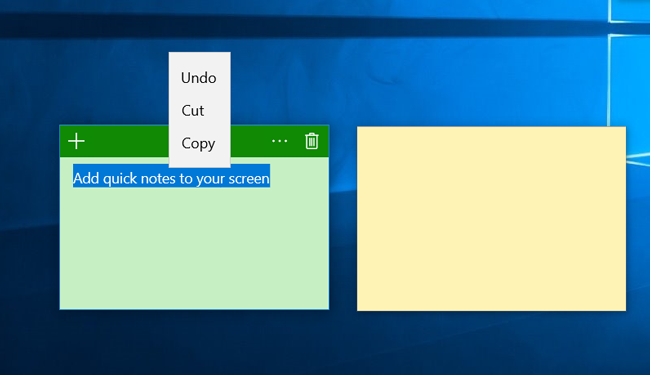
Also you can use Undo/redo, copy/paste/cut/delete commands while editing.
What is the difference among low, normal and high note priorities?
To make your work with computer sticky notes more convenient, Free Sticky Notes (create quick notes software) is organized to provide three note priority levels(high, normal, low). If quick notes have low priority, they are hidden under other windows and their hide icon (X) is yellow. Quick notes with normal priority have standard Windows order and hide icon for such notes is green. Quick Notes with high priority are always on the top, they have red hide icon.
How to change sticky notes size
You can change sticky notes size using zoom commands or manual.
Sticky notes (quick notes) can be minimized to save you desk space. To minimize sticky notes (quick notes), right-click on note and select Settings|Zoom|Minimize in the context menu. Minimum note's size is set in default settings (min width not less than 100 pixels, min height not less than 50 pixels) and may be changed. To maximize sticky notes (quick notes), right-click on note and select Settings|Zoom|Maximize in the sticky note (quick note) context menu.
Using Settings|Zoom|to fit Title and Settings|Zoom|to fit Body commands you can automatically resize quick notes' windows to fit notes' information.
|
|
|
|