Best Free Sticky Notes for Windows and Mac
Sticky Notes for Windows 10
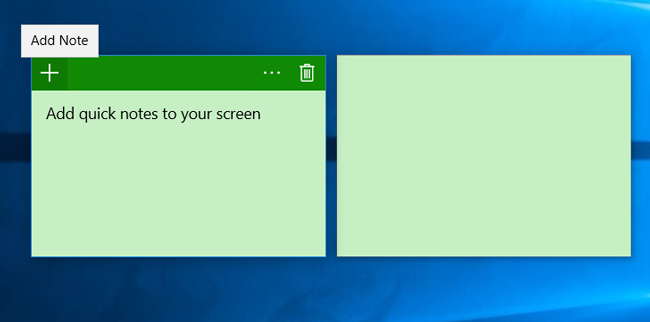
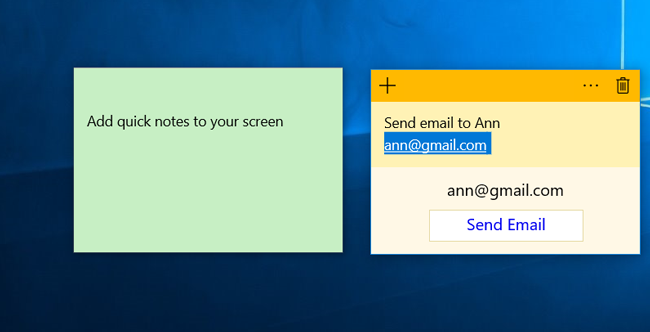
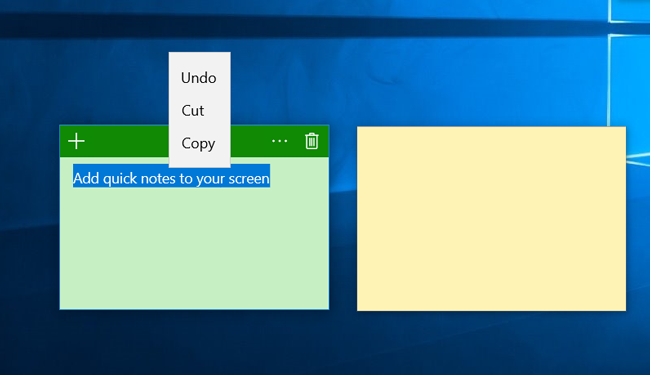
Windows Sticky Notes is a handy app for making virtual sticky notes on your desktop. The app provides simple design that makes capturing notes easy and quick. If you right-click on a sticky note, you can change its color. For example, you may use yellow notes for business, blue notes for quick reminders and green ones for personal stuff.
Read more
While Microsoft Sticky Notes is great for quick note-taking, it hasn't got many features. If you need more options,
JustNoteIt with deep customization, the Notes Manager and the Recycle Bin options and search capability is a great alternative to Windows Sticky Notes. This sticky notes application exists in two versions -
JustNoteIt for Windows 10 and
JustNoteIt for Windows 7, Windows Vista and Windows XP. You can
download JustNoteIt here.
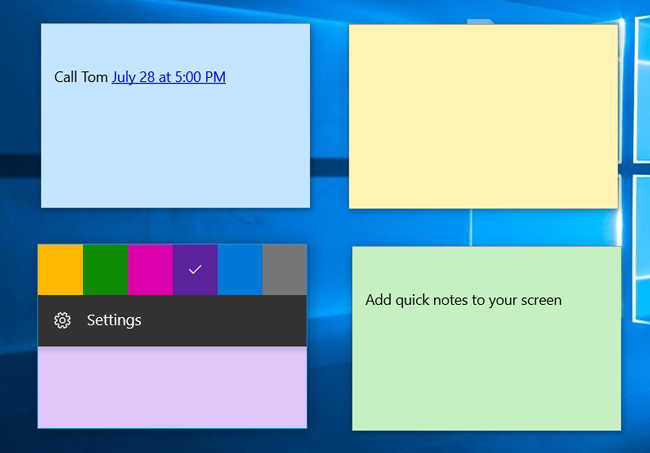
The Sticky Notes app used to be in Windows XP, Windows Vista and Windows 7/8 and it is still in Windows 10.
Download the Sticky Notes app from Microsoft Store for Windows 10
JustNoteIt - convenient and lightweight alternative to Sticky Notes for Windows 10/7/Vista/XP
JustNoteIt combines extensive functionality and intuitive and user-friendly design. It is a cute
sticky notes app that allows you to capture your ideas.
The app supports a variety of great options to organize your notes with ease without making things too complicated. You can customize, format, sort, search, print, duplicate, search and tag your notes in one click. In addition, the app supports a variety of formatting options, including options to bold, italicize and underline text, create bulleted and numbered lists, adjust lines and paragraphs settings and more that allow you to make your sticky notes more stylish.
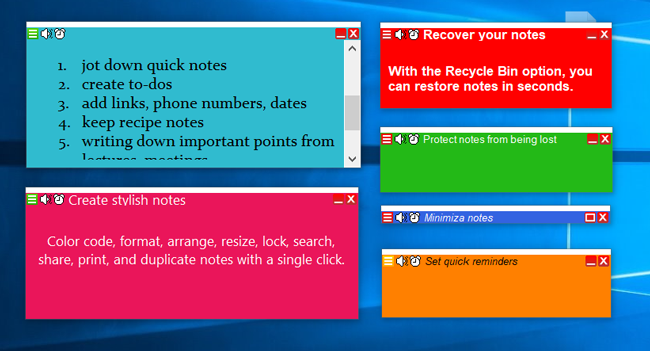
Each sticky note consists of two areas - note's title (or header) and note's body (or text area where you type your text in). You may add a title to each note for further searching and sorting.
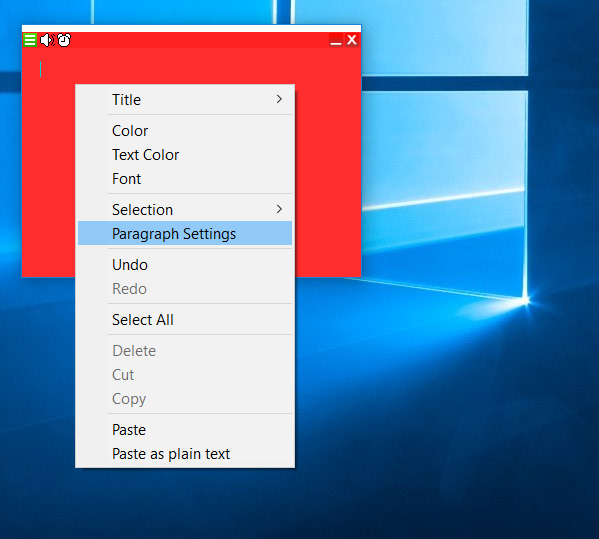
Right-click in any part of a note will open the context menu with the following items Title, Color, Text color, Font, Selection, Paragraph Settings, Undo, Redo, Select All, Delete, Cut, Copy, Paste, Paste as plain text. Clicking on the "_" icon next to the close icon "x" in the upper-right corner will switch note's state between "minimized" and "restored".
With the JustNoteIt Notes Manager, you may perform batch operations on notes and efficiently organize them on the desktop - show, hide, minimize and cascade sticky notes and reminders. One more option that helps you organize sticky notes is Note's priority. According to your choice sticky notes may be always visible or may be pinned to the desktop.
Right-clicking on the icon in the upper-left corner provides quick access to the following options: Priority, Transparency, Size, Lock/Unlock, Duplicate, Delete, Save, Print, and Send as emails. All these actions can be performed on an individual note.
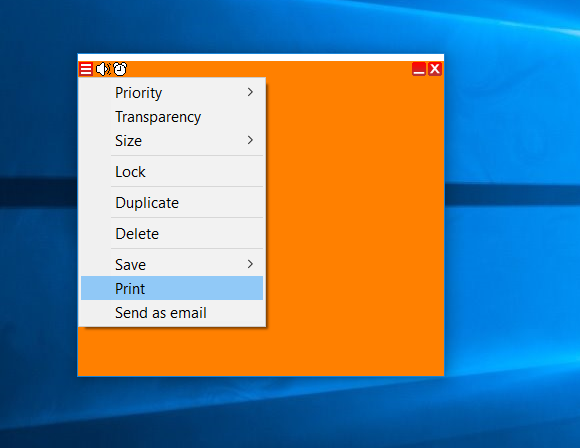
The Speaker icon, next to the Note's menu icon, activates another great option - "Note to speech". So the app reads your note's text aloud.
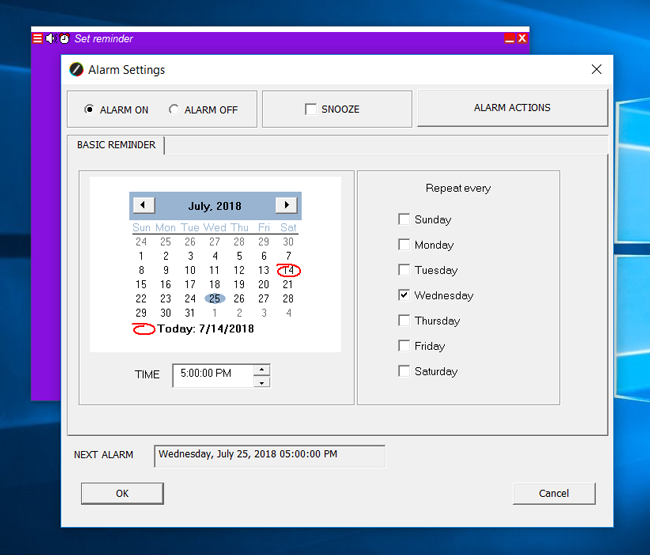
The app offers various reminder options to inform you about important dates and events in many different ways. Using this option you will be notified in time even your notes are hidden.
Have you ever deleted an important note or file with your daily works or important dates by mistake? Unlike many sticky notes applications, JustNote allows you to move deleted notes to the Recycle bin first, so you can easily recover them if necessary.