Free Sticky Notes
Free Sticky Notes Home Download Free Sticky Notes What's new in Free Sticky Notes Free Sticky Notes Screenshots Free Sticky Notes Main Features Free Sticky Notes FAQ Free Sticky Notes On-line Help
Sticky Notes
NotesPP
Multifunctional notes software
Notes Plus Plus
• custom sticky notes
• makes quick reminders
• personal information organizer
• sends
notes over LAN/Internet
• note-to-speech option
• attaches files/urls to reminder notes
• associates notes with files/programs
• AES 256-bit key notes encryption
• Address Book
MoRUN.net Sticker
Easy-to-use notes software
Sticker

• custom sticky notes
• sends notes over LAN/Internet
• information organizer
• organize notes in groups
• attaches files/urls to notes
• notes encryption
Ideal for home and office
Wednesday, March 10, 2010
Need freeware solutions?
Visit Freeware Download.ORG

2 Privacy.com
FREE tests to check IP address, get detailed IP Whois information, determine IP or Domain geographic location
ClearAllHistory
A must-have tool for every PC user
Clear AllHistory
Delete browser history, search history,
AutoComplete, address bar history,
passwords, delete cache (Temporary Internet Files),
remove cookies and more...
Recommended software

Secure Reminder - desktop reminder software with task and event scheduler, personal information organizer and password generator. Sends notes over LAN/Internet and via email

HideAnyWindow - easily hide windows by hotkeys

My Password Generator - advanced password generator software for Windows. Password keeper

FormAutoFill - automatic form filling software for Internet Explorer. Fill and submit web forms. Advanced Password Generator

Encryption and Decryption Pro - text and file encryption software
Download Free software

Encryption And Decryption

Free sticky notes software

Delete History Free

Portable Stickies

Form Auto Filler

Delete Files Permanently

HideMyBrowserFree

Free Random Password Generator

Useful sites

Internet history eraser - erase history tracks software
EraseAllHistory - learn how to erase browser history, search history, address bar history, index.dat files, passwords, cache (Temporary Internet Files), cookies in Internet Explorer, Firefox, Mozilla and Opera. Tips to erase computer history tracks
My Wiper - wipe all history tracks
Top Question

• How can I export/import sticky notes database?

Using export/import feature you can easily export/import sticky notes database from one version to another or between different MoRUN.net sticky notes programs. To export your sticky notes database: right-click the program tray menu and select "Export", select in what file and where you want to save your sticky notes database.
To import sticky notes database: right-click the program tray menu and select "Import", select the sticky notes database *.dat file you want to import.
If your product or product version doesn't support some features available in the imported *.dat file, these features will be ignored.

FREE Sticky Notes - easy to use desktop sticky notes software

FREE Sticky Notes FAQ

• What is Free Sticky Notes?

Free Sticky Notes (desktop sticky notes freeware) is a great tool to organize information or just write down ideas and thoughts. Just create a sticky note and "stick" it to your computer desktop. That way important information is always in front of your eyes. Unlike paper sticky notes that can be easily lost, desktop sticky notes keep your information in a safe way.

Top

• What are the minimum system requirements for Free Sticky Notes?

• IBM PC or compatible 200 MHz or faster
• Windows 2000/XP/NT 4.0 SP6a/ME/98/95 OSR2
• Internet Explorer 5.0 or higher
• At least 32 MB RAM and 10 MB of free hard disk space(64 MB RAM and 30 MB of hard disk space recommended)
• At least 256 color monitor capable of 800 x 600 resolution (1024 x 768, millions of colors recommended).

Top

• What are the main features of Free Sticky Notes?

Using Free Sticky Notes you can:

 Stick notes on your computer desktop;

 drag and drop your notes anywhere you want on your desktop;

 choose individual appearance for each desktop sticky note;

 change note color and font;

 change note size manually or using zoom feature;

 set up default settings for newly created desktop sticky notes;

 use transparency feature;

 print notes and take them with you;

 automatically save changes in sticky notes;

 create desktop sticky notes with different priorities;

 show/hide sticky notes;

 roll-up sticky notes to show only note's title;

 export/import sticky notes database;

 automatically insert date and time of creation in note's title;

 protect sticky notes from casual delete using lock/unlock commands;

 use "autolock" function;

 use hotkeys to create sticky notes, show/hide notes etc;

 use scrolling;

 access desktop sticky notes and program options from the system tray.

Top

• Can I attach files to sticky notes or stick notes to certain programs/windows using Free Sticky Notes?

Unfortubately, these features are not available in Free Sticky Notes.
If you need these features try other MoRUN.net sticky notes programs:

Secure Reminder - powerful and easy-to-use secure sticky notes and reminder software with task scheduler and password generator.

NotesPP - multifunctional desktop sticky notes software with strong information encryption. Perfect for making quick reminders.

MoRUN.net Sticker - sticky notes organizer that lets you stick notes on your Windows desktop. Ideal for home and office.

Top

• What do I do to change desktop sticky notes appearance?

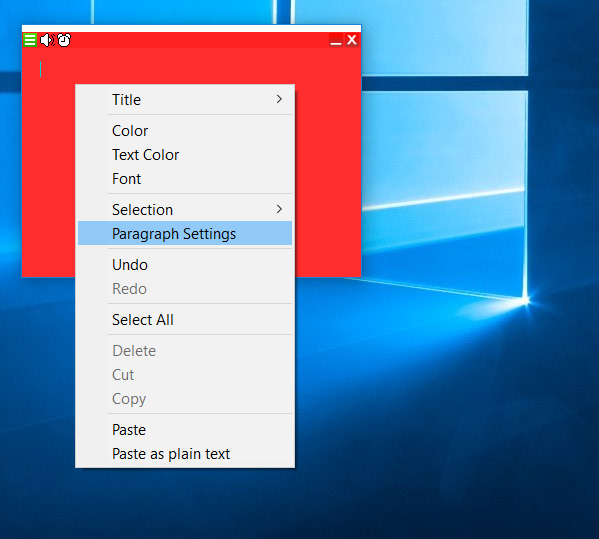
The appearance of desktop sticky notes is highly customizable. Notes settings are saved automatically.

  • Title
    To change title font:
    1. Select Title|Font in the context menu.
    2. Make necessary changes.
    3. Click OK.
    To change title font color:
    1. Select Title|Font color in the context menu.
    2. Select a new color from the palette.
    3. Click OK.
    To change title background color:
    1. Select Title|Background color in the context menu .
    2. Select a new color from the palette.
    3. Click OK.

  • Body
    To change body font:
    1. Select Body|Font in the context menu.
    2. Make necessary changes.
    3. Click OK.
    To change body font color:
    1. Select Body|Font color in the context menu.
    2. Select a new color from the palette.
    3. Click OK.
    To change body background color:
    1. Select Body|Background color in the context menu.
    2. Select a new color from the palette.
    3. Click OK.

  • Transparency
    Only for Windows 2000/XP. You can vary the degree of transparency from 0% to 100%. If you want to change sticky notes transparency, select Settings|Transparency in the context menu.Transparency effect disappears if the note is activated or the mouse cursor is over the note.

Top

• What do I do to change sticky notes size?

You can change sticky note size using zoom commands or manual.
Desktop notes can be minimized to save you desk space. To minimize a note, select Settings|Zoom|Minimize in the context menu. Minimum note size is set in default settings (min width not less than 100 pixels, min height not less than 50 pixels) and may be changed to your preference. To maximize a note, select Settings|Zoom|Maximize in the context menu.
The Settings|Zoom|to fit Title and Settings|Zoom|to fit Body commands automatically resize the note window to fit the note information.
If you want to change default size:
  • Click on the Free Sticky Notes tray menu and select Properties|Default settings.
  • Make changes.
  • Click OK to accept the changes.

Top

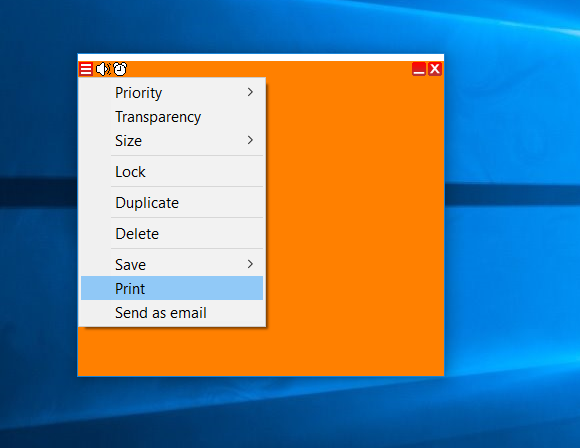
• Can I print desktop sticky notes?

Yes. To print the necessary desktop sticky note:
  1. Select Print note in the context menu.
  2. Follow the instructions in the Print dialogs.

Top

• How can I uninstall Free Sticky Notes?

To uninstall the program choose Start | Programs | MoRUN.net | FreeStickyNotes | Uninstall Free Sticky Notes or run the "Add/Remove Programs" utility from Windows Control Panel, select MoRUN.net Free Sticky Notes string in the list of installed programs and press the "Add/Remove..." button.

Top

• What do I do to delete sticky notes?

There are two ways to delete sticky notes:
Select Delete note in the context menu
or choose the Delete notes item in the Free Sticky Notes tray menu. The "Delete notes" window with a list of existing notes appears. Select a note or a group of notes you want to delete and click the Delete button. To select a group of sticky notes click and hold down Ctrl or Shift button and choose the notes.

Top

• What do I do to make all note information visible?

If you want all note information is visible, use the Zoom|to fit Title and Zoom|to fit Body commands (automatically resize the note window to fit the note information) or change note size manual.

Top

• Can I use "Auto lock" function for already existing sticky notes?

Yes. Select Properties|Default settingsin the Free Sticky Notes tray menu, select "Auto lock" and set the time. Click on the notes you want to be locked automatically, left them and they will be auto locked after the chosen period of time. If you want all existing notes are locked automatically, select Notes|Show/Hide|Show all in the tray menu.

Top

• How can I create a new sticky note?

To create a sticky note left double-click on the Free Sticky Notes tray icon or select Notes|New note in the Free Sticky Notes tray menu or press Alt+N. The number of notes you can create is limited - 10 desktop sticky notes.

Top

• What is the difference among low, normal and high note priorities?

To make your work with sticky notes more convenient, Free Sticky Notes is organized to provide three note priority levels(high, normal, low). If a sticky note has low priority, it is hidden under other windows and its hide icon (X) is yellow. Desktop sticky notes with normal priority have standard Windows order and hide icon for such notes is green. Sticky notes with high priority are always on the top, they have red hide icon.

Top

• How can I change note's priority?

To change note's priority, select Settings|Priority in the context menu and choose the necessary priority level.

Top

• How can I export/import sticky notes database?

Using export/import feature you can easily export/import sticky notes database from one version to another or between different MoRUN.net products.
To export your notes database:
  • Right-click the program tray menu and select "Export".
  • Select in what file and where you want to save your notes database.
To import notes database*:
  • Right-click the program tray menu and select "Import".
  • Select the notes database *.dat file you want to import.
* If your product or product version doesn't support some features available in the imported *.dat file, these features will be ignored.
Note: All imported notes are added to the current notes.

Top

   Copyright © 2002-2009 Free Sticky Notes.com All rights reserved. | Terms of Use | Privacy Policy | Links |